








|
Getting your Trinity Audio player ready...
|
Table of Contents
Running a WordPress website is generally smooth, flexible, and reliable until something suddenly breaks. One of the most alarming situations for any website owner, developer, or business is encountering the dreaded WordPress critical error. Without warning, your website may go blank, display a fatal error message, or completely block access to both the frontend and the admin dashboard.
For many users, this moment triggers panic. A critical error WordPress message can make it seem like the entire website has collapsed. Sales pages stop loading. Visitors see errors instead of content. Administrators lose backend access. And if the site is business-critical, the financial and reputational impact can escalate quickly.
However, despite how catastrophic it may appear, a WordPress critical error is usually recoverable. The key lies in understanding why it occurs and following a structured troubleshooting approach rather than making random changes. Plugin conflicts, theme issues, PHP problems, memory limits, corrupted files, or server-side misconfigurations typically trigger these errors.
What Is a WordPress Critical Error?
A WordPress critical error is a serious PHP error that prevents WordPress from executing properly. Unlike minor warnings or notices, critical errors halt script execution entirely, which is why the website becomes inaccessible or partially functional.
In most cases, users encounter messages like:
“There has been a critical error on this website.”
“Fatal error: Uncaught Error.”
“Your site is experiencing technical difficulties.”
These messages are intentionally generic. WordPress hides detailed error output by default to avoid exposing sensitive technical information. While this improves security, it also makes diagnosing a critical error in WordPress confusing for non-technical users.
A WordPress critical error does not necessarily indicate data loss or permanent damage. Instead, it signals that something within the execution flow, often code-related, has failed. Understanding this distinction is crucial when learning to fix WordPress critical errors without unnecessary stress.
Why WordPress Critical Errors Occur?
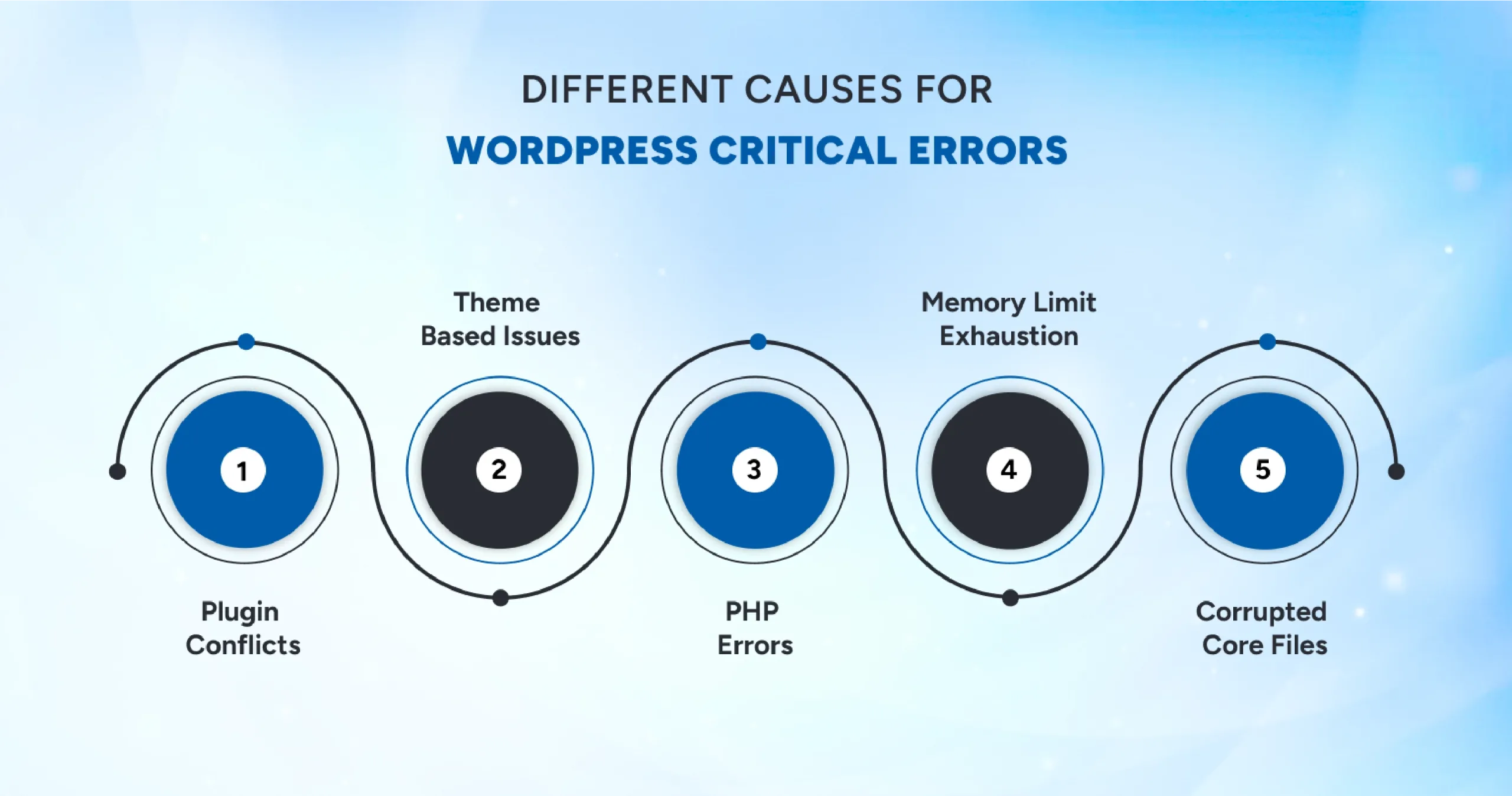
A critical error in WordPress typically arises when PHP encounters a condition it cannot safely recover from. WordPress relies heavily on PHP, themes, plugins, and server resources, which means multiple components interact simultaneously. A failure in any one of these areas can trigger a WordPress critical error.
Unlike visual bugs or styling problems, critical errors interrupt core functionality. This is why proper WordPress bug fixing requires identifying the root cause rather than applying superficial fixes.
Let’s explore the most common triggers.
Plugin Conflicts: The Leading Cause of WordPress Critical Error
Plugins extend WordPress functionality, but they are also the most frequent source of critical WordPress errors. Because different authors with varying coding practices develop plugins, compatibility issues can arise unexpectedly.
A plugin may:
- Call deprecated PHP functions
- Conflict with another plugin
- Exceed memory limits
- Introduce syntax errors
- Fail after updates
When this happens, WordPress may display a critical error message or completely crash.
How to Diagnose Plugin-Related Errors?
To understand how to fix WordPress critical error cases caused by plugins:
1. Access your website via FTP or File Manager
2. Navigate to `/wp-content/plugins/.`
3. Rename the plugins folder (e.g., `plugins_disabled`)
Suppose the website loads again, and a plugin is responsible. From here, systematic WordPress bug fixing involves reactivating plugins one by one until the problematic extension is identified.
Theme Issues and Critical Error WordPress Problems
Themes control your site’s presentation and structure, but poorly coded or incompatible themes can trigger a WordPress critical error. This often happens after theme updates, manual code edits, or version mismatches.
Common theme-related causes include:
- Missing template files
- Broken functions.php code
- PHP incompatibility
- Conflicting scripts
When WordPress fails to render the theme, a critical error in WordPress may occur.
Fixing Theme-Based Critical Errors
A practical method for fixing WordPress critical errors due to themes:
Access `/wp-content/themes/.`
Rename the active theme folder
WordPress will automatically revert to a default theme. If the error disappears, you have isolated the cause, which is a fundamental principle of effective WordPress bug fixing.
PHP Errors: The Hidden Trigger Behind Many WordPress Critical Errors
Because WordPress runs on PHP, any syntax mistake, unsupported function, or execution failure can produce a WordPress critical error.
PHP errors frequently arise from:
- Custom code edits
- Outdated PHP versions
- Missing extensions
- Memory exhaustion
Unfortunately, WordPress suppresses detailed error messages, making diagnosis harder.
Enabling Debug Mode for WordPress Bug Fixing
When learning how to fix a WordPress critical error, enabling debugging is invaluable.
Edit `wp-config.php`:
php
define(‘WP_DEBUG’, true);
define(‘WP_DEBUG_LOG’, true);
define(‘WP_DEBUG_DISPLAY’, true);
Reloading the page may reveal the exact cause of the critical error WordPress problem, dramatically simplifying WordPress bug fixing.
Memory Limit Exhaustion and WordPress Critical Error
Insufficient memory allocation is another major reason for a WordPress critical error. When scripts exceed available memory, PHP terminates execution.
Symptoms may include:
- Backend failure
- Plugin crashes
- Blank screens
- Fatal errors
Increasing Memory to Fix Critical Error in WordPress
To address this common issue when investigating how to fix WordPress’s critical error:
php
define(‘WP_MEMORY_LIMIT’, ‘256M’);
Memory tuning is a core aspect of proactive WordPress bug fixing, especially for resource-intensive websites.
Corrupted Core Files and Critical Error WordPress
File corruption can occur due to incomplete updates, malware infections, or server interruptions. Damaged WordPress core files may immediately trigger a WordPress critical error.
Repair Strategy
Download fresh WordPress files
Replace `/wp-admin/` and `/wp-includes/.`
This technique frequently resolves stubborn critical errors in WordPress and is widely used in professional WordPress bug-fixing workflows.
Server-Side Misconfigurations and WordPress Critical Errors
Sometimes the WordPress critical error originates outside WordPress itself. Hosting environments, PHP handlers, file permissions, or caching layers may disrupt execution.
Typical triggers:
- Incorrect PHP version
- Disabled PHP modules
- Permission errors
- Aggressive firewall rules
Diagnosing these issues often requires collaboration with hosting support, a necessary step in advanced WordPress bug fixing.
How to Fix WordPress Critical Error (Step-By-Step Approach)?
If you’re wondering how to fix a WordPress critical error, follow a structured path. Avoid random edits. Avoid deleting files unthinkingly.
Step 1: Check Your Email (Recovery Mode)
Modern WordPress versions include a safety feature.
When a fatal error occurs, WordPress often sends a recovery email to the admin address. This message contains:
- Error details
- Faulty plugin/theme reference
- Recovery login link
- If available, this is the fastest way to get WordPress bug fixes.
Step 2: Disable Plugins via File Manager or FTP
No dashboard access? No problem.
Access your hosting control panel or FTP client.
Navigate to:
/wp-content/plugins/
Rename the plugins folder to something like:
- plugins-disabled
This forces WordPress to deactivate all plugins.
If your site loads afterwards, the WordPress critical error wascaused by a plugin. Reactivate plugins individually to isolate the offender.
Step 3: Switch to a Default Theme
Theme conflicts are equally disruptive.
Navigate to:
/wp-content/themes/
Rename the active theme folder. WordPress will then automatically switch to a default theme like Twenty Twenty-Four.
If the error disappears, your theme triggered the critical error WordPress issue.
Step 4: Enable Debug Mode (For Precise Diagnosis)
For deeper WordPress bug fixing, enable debugging.
Edit your wp-config.php file and add:
define(‘WP_DEBUG’, true);
define(‘WP_DEBUG_LOG’, true);
define(‘WP_DEBUG_DISPLAY’, true);
Reload your site.
Instead of a generic WordPress critical error, you’ll see the exact PHP error message.
This reveals:
- Missing functions
- File paths
- Syntax issues
- Plugin/theme origins
- Debugging transforms guesswork into clarity.
Step 5: Increase PHP Memory Limit
Memory shortages frequently trigger fatal errors.
Inside wp-config.php, add:
define(‘WP_MEMORY_LIMIT’, ‘256M’);
If hosting restrictions override this, adjust limits within your control panel or consult your hosting provider.
Step 6: Verify PHP Version Compatibility
Check your server’s PHP version.
Most modern WordPress environments function best on PHP 8.x. Running incompatible versions can repeatedly generate critical WordPress errors.
Update cautiously. Test thoroughly.
Step 7: Restore From Backup (When Necessary)
If recent changes caused the failure, restoring a stable backup may be faster than manual debugging.
A reliable backup strategy dramatically simplifies fixing WordPress critical error scenarios. In a recent project where we designed and developed third-party CMS website ecosystems for enterprise workflows, proactive compatibility planning prevented system-wide failures during major updates.
The Hidden Cost of a WordPress Critical Error (What Most Site Owners Overlook)
When a WordPress critical error appears, most people focus exclusively on restoring functionality. While technical recovery is important, the real damage often occurs behind the scenes.
A critical WordPress error carries invisible consequences that extend beyond the error message itself.
1. Revenue Loss and Conversion Disruptions
If your website supports sales, leads, or bookings, even short downtime can produce a measurable financial impact.
Visitors may encounter:
- Blank pages
- Error screens
- Checkout failures
Each failed interaction represents a lost opportunity. A prolonged WordPress critical error can silently erode revenue without an obvious warning.
2. SEO and Ranking Instability
Search engines monitor site availability and performance. Frequent critical error WordPress incidents may trigger:
Crawl interruptions
- Indexing issues
- Ranking drops
Unlike traffic fluctuations, SEO damage compounds over time. Recovering lost visibility often requires more effort than fixing the original WordPress critical error.
3. Brand Credibility and User Trust
Users rarely distinguish between technical failures and business reliability.
Repeated WordPress critical error experiences may signal:
- Poor maintenance
- Security concerns
- Unprofessional infrastructure
Trust, once damaged, is difficult to rebuild.
4. Emergency Fixing Costs
Unexpected failures often force reactive spending:
- Developer intervention
- Hosting diagnostics
- Malware scans
- Urgent WordPress bug fixing
Preventive maintenance is almost always cheaper than emergency recovery triggered by a critical error in WordPress.
5. Operational Disruptions and Productivity Loss
Backend lockouts prevent administrators from:
- Publishing content
- Managing orders
- Updating products
- Handling customers
The indirect cost of halted workflows can exceed the direct cost of resolving the WordPress critical error itself.
Why Solving WordPress Critical Matters?
A WordPress critical error is not merely a technical inconvenience. It is a business risk multiplier. The longer the issue persists, the more secondary damage accumulates, such as financial, operational, and strategic.
This is precisely why proactive monitoring, disciplined updates, and structured WordPress bug fixing practices are not optional for serious websites.
Preventing Future WordPress Critical Errors
While resolving a WordPress critical error is important, prevention is even more valuable.
Best practices:
- Use reputable plugins and themes
- Maintain regular backups
- Avoid reckless code edits
- Monitor PHP compatibility
- Update cautiously
Preventive maintenance drastically reduces recurring critical error incidents in WordPress and simplifies long-term WordPress bug-fixing efforts.
When Professional WordPress Bug Fixing Makes Sense?
Some failures are deceptively complex.
If debugging reveals unfamiliar PHP errors, database corruption, or server-level conflicts, expert WordPress bug fixing can save significant time and reduce risk.
Persistent critical WordPress errors often indicate deeper architectural or compatibility issues rather than isolated bugs. In such scenarios, engaging experienced wordPress development services ensures your website is stabilized, optimized, and structurally reinforced instead of temporarily patched.
Conclusion
A WordPress critical error is a signal that your digital foundation needs structural resilience. Beyond immediate recovery, what truly matters is building an ecosystem that anticipates failure, isolates risk, and sustains performance under change.
As a digital solutions company, Ace Infoway approaches WordPress bug fixing from a systems perspective, not just patching symptoms, but resolving root causes with scalable precision. Our structured diagnostics, performance optimization expertise, and infrastructure alignment make us a dependable partner when critical WordPress challenges escalate.
If your website’s stability impacts growth and WordPress Critical is a concern for you, contact us to secure your WordPress environment with confidence.
FAQ
Does a WordPress critical error affect website security?
Not always directly, but it can expose vulnerabilities. A critical WordPress issue may indicate outdated plugins, broken scripts, or compatibility gaps, all of which can weaken the security posture. Proactive WordPress bug fixing reduces both downtime and risk exposure.
Can a WordPress critical error resolve itself?
In rare cases, temporary server glitches may clear automatically. However, most WordPress critical error incidents require manual intervention. Ignoring the issue without diagnosis can worsen the underlying cause and create recurring failures.
How long does it typically take to fix a critical WordPress issue?
Resolution time depends on complexity. Minor plugin conflicts may take minutes, while deep architectural WordPress bug fixing can require detailed debugging. Structured diagnosis significantly reduces guesswork and accelerates recovery.
Can hosting quality influence WordPress critical error frequency?
Yes. Low-resource or poorly configured hosting environments can trigger memory exhaustion, timeout errors, or version conflicts. Stable hosting infrastructure reduces the likelihood of repeated critical WordPress disruptions.
Is it safe to update plugins after experiencing a WordPress critical error?
Updates should be handled cautiously. Before applying changes, create a backup and test in staging. Many WordPress bug-fixing scenarios arise from rushed updates without compatibility checks.
Does enabling debug mode permanently solve how to fix WordPress critical error problems?
Debug mode doesn’t solve the issue; it reveals it. It’s a diagnostic tool that helps identify the root cause of a WordPress critical error, enabling targeted fixes rather than trial-and-error troubleshooting.
Can database issues trigger a critical error WordPress message?
Yes. Corrupted tables, failed queries, or connection issues can escalate into fatal execution failures. In such cases, WordPress bug fixing may require database repair or optimization beyond plugin adjustments.
Will reinstalling WordPress remove a WordPress critical error?
Reinstalling core files can help if the issue stems from corrupted system files. However, it won’t resolve plugin, theme, or server-level conflicts. Proper evaluation is essential before taking drastic steps.
Why does a WordPress critical error sometimes appear only on specific pages?
Page-specific functionality often depends on particular plugins, templates, or scripts. If those components fail, a localized critical error WordPress issue may occur while the rest of the site remains functional.
When should businesses seek professional WordPress bug fixing support?
If repeated attempts to resolve WordPress critical error issues fail, or if the issue affects revenue and customer access, expert intervention becomes essential. Persistent failures often indicate deeper compatibility or infrastructure misalignment.